How to use PyQtDarkTheme#
Apply dark theme to your Qt Application#
PyQtDarkTheme applies a flat theme to your Qt applications using Qt stylesheets system.
import sys

from PySide6.QtWidgets import QApplication, QMainWindow, QPushButton

import qdarktheme

app = QApplication(sys.argv)
main_win = QMainWindow()
push_button = QPushButton("PyQtDarkTheme!!")
main_win.setCentralWidget(push_button)

# Apply dark theme
app.setStyleSheet(qdarktheme.load_stylesheet())

main_win.show()

app.exec()
import sys

from PyQt6.QtWidgets import QApplication, QMainWindow, QPushButton

import qdarktheme

app = QApplication(sys.argv)
main_win = QMainWindow()
push_button = QPushButton("PyQtDarkTheme!!")
main_win.setCentralWidget(push_button)

# Apply dark theme
app.setStyleSheet(qdarktheme.load_stylesheet())

main_win.show()

app.exec()
import sys

from PySide2.QtWidgets import QApplication, QMainWindow, QPushButton

import qdarktheme

app = QApplication(sys.argv)
main_win = QMainWindow()
push_button = QPushButton("PyQtDarkTheme!!")
main_win.setCentralWidget(push_button)

# Apply dark theme
app.setStyleSheet(qdarktheme.load_stylesheet())

main_win.show()

app.exec_()
import sys

from PyQt5.QtWidgets import QApplication, QMainWindow, QPushButton

import qdarktheme

app = QApplication(sys.argv)
main_win = QMainWindow()
push_button = QPushButton("PyQtDarkTheme!!")
main_win.setCentralWidget(push_button)

# Apply dark theme
app.setStyleSheet(qdarktheme.load_stylesheet())

main_win.show()

app.exec()
import pyqtgraph as pg
from pyqtgraph.Qt.QtGui import QMainWindow, QPushButton

import qdarktheme

app = pg.mkQApp()
main_win = QMainWindow()
push_button = QPushButton("PyQtDarkTheme!!")
main_win.setCentralWidget(push_button)

# Apply dark theme
app.setStyleSheet(qdarktheme.load_stylesheet())

main_win.show()

pg.exec()
Toggle dark/light Theme#
You can easily switch between light and dark theme.
def toggle_theme(theme) -> None:
    stylesheet = qdarktheme.load_stylesheet(theme)
    QApplication.instance().setStyleSheet(stylesheet)


signal.connect(toggle_theme)
import sys

from PyQt6.QtCore import pyqtSlot
from PyQt6.QtWidgets import QApplication, QComboBox, QHBoxLayout, QMainWindow, QWidget

import qdarktheme

app = QApplication(sys.argv)
main_win = QMainWindow()
combo_box = QComboBox()


@pyqtSlot(str)
def toggle_theme(theme) -> None:
    stylesheet = qdarktheme.load_stylesheet(theme)
    QApplication.instance().setStyleSheet(stylesheet)


combo_box.addItems(qdarktheme.get_themes())
combo_box.currentTextChanged.connect(toggle_theme)

layout = QHBoxLayout()
layout.addWidget(combo_box)

central_widget = QWidget()
central_widget.setLayout(layout)
main_win.setCentralWidget(central_widget)

# Apply dark theme
app.setStyleSheet(qdarktheme.load_stylesheet())

main_win.show()

app.exec()
On some operating systems we can detect if a dark or light mode is selected system-wide. By using darkdetect, You can easily sync your application theme with this operating system theme.
def sync_theme_with_system() -> None:
    theme = darkdetect.theme().lower()
    # Return None if darkdetect fails to detect a theme.
    if theme is None:
        theme = "dark"
    stylesheet = qdarktheme.load_stylesheet(theme)
    QApplication.instance().setStyleSheet(stylesheet)


app.paletteChanged.connect(sync_theme_with_system)
import sys

import darkdetect
from PySide6.QtCore import Slot
from PySide6.QtWidgets import QApplication, QLabel, QMainWindow

import qdarktheme

app = QApplication(sys.argv)
main_win = QMainWindow()
theme_label = QLabel()

main_win.setCentralWidget(theme_label)


@Slot()
def sync_theme_with_system() -> None:
    theme = darkdetect.theme().lower()
    # Return None if darkdetect fails to detect a theme.
    if theme is None:
        theme = "dark"
    theme_label.setText(f"Theme: {theme}")
    stylesheet = qdarktheme.load_stylesheet(theme)
    QApplication.instance().setStyleSheet(stylesheet)


app.paletteChanged.connect(sync_theme_with_system)
sync_theme_with_system()

main_win.show()

app.exec()
Toggle dark/light Theme with pyqtgraph#
You can also switch between light and dark theme with pyqtgraph.
def toggle_theme(theme) -> None:
    stylesheet = qdarktheme.load_stylesheet(theme)
    QApplication.instance().setStyleSheet(stylesheet)
    plot_widget.setBackground("k" if theme == "dark" else "w")


signal.connect(toggle_theme)
import sys

import pyqtgraph as pg
from PySide6.QtCore import Slot
from PySide6.QtWidgets import QApplication, QComboBox, QMainWindow, QVBoxLayout, QWidget

import qdarktheme

app = QApplication(sys.argv)
main_win = QMainWindow()
combo_box = QComboBox()
plot_widget = pg.PlotWidget()


@Slot(str)
def toggle_theme(theme) -> None:
    stylesheet = qdarktheme.load_stylesheet(theme)
    QApplication.instance().setStyleSheet(stylesheet)
    plot_widget.setBackground("k" if theme == "dark" else "w")


combo_box.addItems(qdarktheme.get_themes())
combo_box.currentTextChanged.connect(toggle_theme)

layout = QVBoxLayout()
layout.addWidget(combo_box)
layout.addWidget(plot_widget)

central_widget = QWidget()
central_widget.setLayout(layout)
main_win.setCentralWidget(central_widget)

# Apply dark theme
app.setStyleSheet(qdarktheme.load_stylesheet())

main_win.show()

app.exec()
Theme customization#
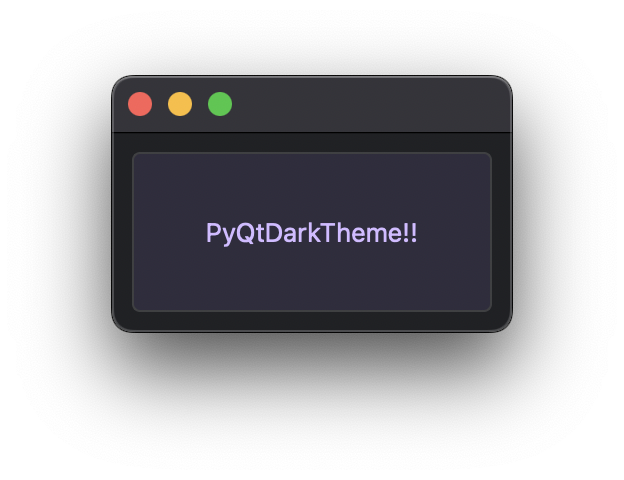
You can customize theme color.
qdarktheme.load_stylesheet(custom_colors={"primary": "#D0BCFF"})
import sys

from PySide6.QtWidgets import QApplication, QMainWindow, QPushButton

import qdarktheme

app = QApplication(sys.argv)
main_win = QMainWindow()
main_win.setContentsMargins(10, 10, 10, 10)
push_button = QPushButton("PyQtDarkTheme!!")
main_win.setCentralWidget(push_button)

# Customize accent color.
app.setStyleSheet(qdarktheme.load_stylesheet(custom_colors={"primary": "#D0BCFF"}))

main_win.show()

app.exec()
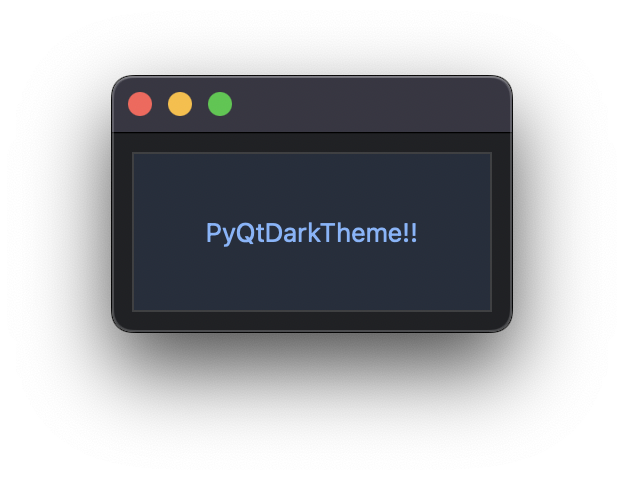
You can also change border corner shape.
qdarktheme.load_stylesheet(corner_shape="sharp")
import sys

from PySide6.QtWidgets import QApplication, QMainWindow, QPushButton

import qdarktheme

app = QApplication(sys.argv)
main_win = QMainWindow()
main_win.setContentsMargins(10, 10, 10, 10)
push_button = QPushButton("PyQtDarkTheme!!")
main_win.setCentralWidget(push_button)

# Change border corner shape to sharp.
app.setStyleSheet(qdarktheme.load_stylesheet(corner_shape="sharp"))

main_win.show()

app.exec()
Use QPalette to your Qt Application#
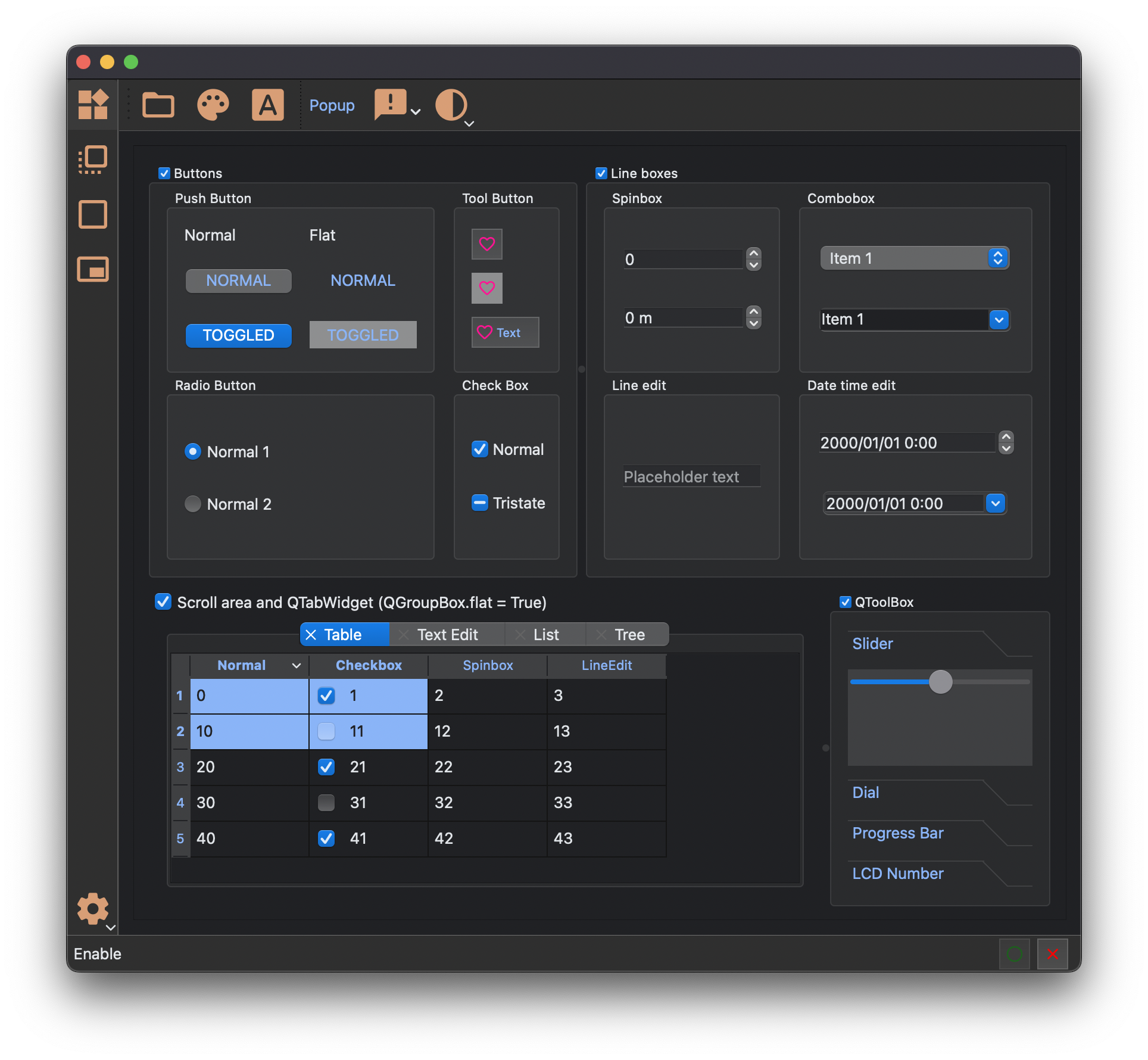
You can also apply dark and light color to your Qt Application using QPalette of PyQtDarkTheme.
qdarktheme.load_palette()
import sys

from PySide6.QtWidgets import QApplication, QMainWindow, QPushButton

import qdarktheme

app = QApplication(sys.argv)
main_win = QMainWindow()
push_button = QPushButton("PyQtDarkTheme!!")
main_win.setCentralWidget(push_button)

# Apply dark theme
app.setPalette(qdarktheme.load_palette())

main_win.show()

app.exec()
And you can get theme color from QPalette of PyQtDarkTheme.
dark_palette = qdarktheme.load_palette()
palette = app.palette()
palette.setColor(QPalette.ColorRole.Link, dark_palette.link().color())
import sys

from PyQt5.QtGui import QPalette
from PyQt5.QtWidgets import QApplication

import qdarktheme

app = QApplication(sys.argv)
dark_palette = qdarktheme.load_palette()
palette = app.palette()
palette.setColor(QPalette.ColorRole.Link, dark_palette.link().color())